On this page
- Last reviewed
- October 2026
Choose what to calculate
Choose one of the three options under Calculation type. The settings below change to suit your choice.
- Deadline
- Enter a start date and a period to find the date before or after it. You can also use court rules for a supported court deadline.
- Days between
- Enter two dates to count the working days or calendar days between them.
- Sequential
- Link two or more periods. Each period starts on the date calculated for the one before it.
Check what your deadline requires
Check the rule, order, contract or policy for the date to count from, the length of the period and which dates to leave out. The calculator needs those details to give you the right answer.
Count working days or calendar days
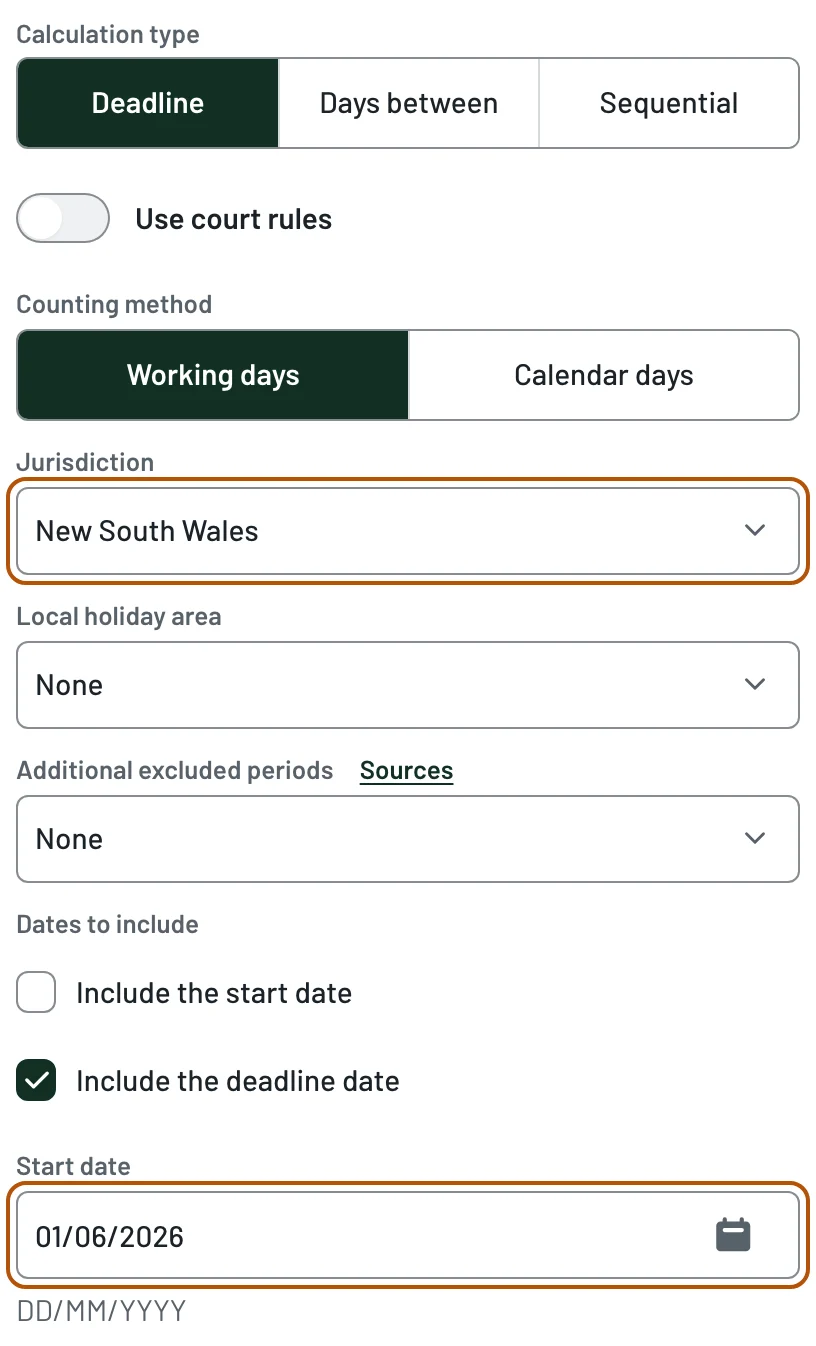
- Use Deadline when you know the start date and period
- Use Days between when you know both dates
- Choose whether the first and last dates count
For an ordinary Deadline, leave Use court rules off. Choose Days between if you already know both dates. Then work through the settings below.
- Start date / End date
- Enter the date to count from. With Days between, enter the end date too.
- Direction
- For Deadline, choose Forward to add the period or Backward to subtract it from the start date.
- Counting method
- Choose Working days to skip weekends, holidays in your chosen calendar and any other dates you select to leave out. Choose Calendar days to count every date, including weekends and holidays.
- Number / Unit
- For Deadline, enter the length of the period in Number. Working-day counts use days. For calendar-day deadlines, Unit also offers weeks and months.
- Jurisdiction / Local holiday area
- For working days, choose the holiday calendar that applies. If a local holiday matters, choose the relevant area too. These settings are hidden when you count calendar days.
- Additional excluded periods
- Choose a security-of-payment, conveyancing or other listed period only if its dates should be left out. Leave this as None otherwise.
- Dates to include
- Tick Include the start date if the first date counts. Use Include the deadline date for the last date in a deadline calculation, or Include the end date for Days between. Follow the wording of your rule or agreement.
Does Monday count as day one?
Start on Monday and add three calendar days, with the deadline date included. If the start date is excluded, Thursday is day three. If the start date is included, Wednesday is day three.
Related resources
- King's Birthday state comparison
The same 15-working-day count in NSW and Queensland
- State-by-state holiday differences
How holiday dates differ across Australia
Choose state and local holidays
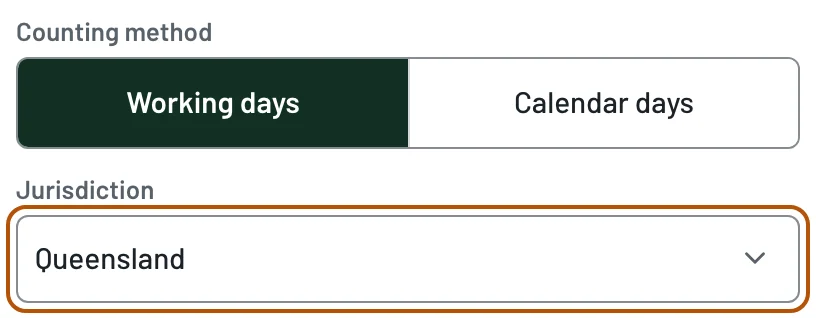
- Jurisdiction selects the main holiday calendar
- Local holiday area selects a supported local calendar
- Check whether local holiday dates cover the year you need
Choose the holiday calendar that applies to your deadline or agreement under Jurisdiction. For a supported local holiday, use Local holiday area as well.
- Jurisdiction
- Choose the state, territory or federal calendar whose holidays apply. Check your rule or agreement; it may specify somewhere other than your current location or your employer's head office.
- Local holiday area
- Choose the local area whose show day or other local holiday applies. The available choices depend on Jurisdiction. Leave this as None if no local calendar applies.
- Missing local holiday dates
- If the selected area has no published dates for the year you need, the calculator stops and explains which years are covered. Check the official holiday table before calculating that period separately.
- Calculation details
- After calculating, check the holiday calendar and local area recorded in the result.
When the selected year is not covered
Use a year covered by the selected area's holiday data. Remove the local area only if its holidays do not apply to your calculation.
For example, choose Queensland under Jurisdiction and City of Gold Coast under Local holiday area, then enter a date in 2028. The calculator currently has local dates through 2027 for that area, so it will ask you to choose a covered year. Check Queensland's official district holiday table if you need to count a period beyond the available data.
Related resources
- Queensland show-day example
Compare the Brisbane Ekka holiday with the Gold Coast show day
- Regional show days and hidden holidays
Where local holiday dates come from and how they affect a count
Calculate a court deadline
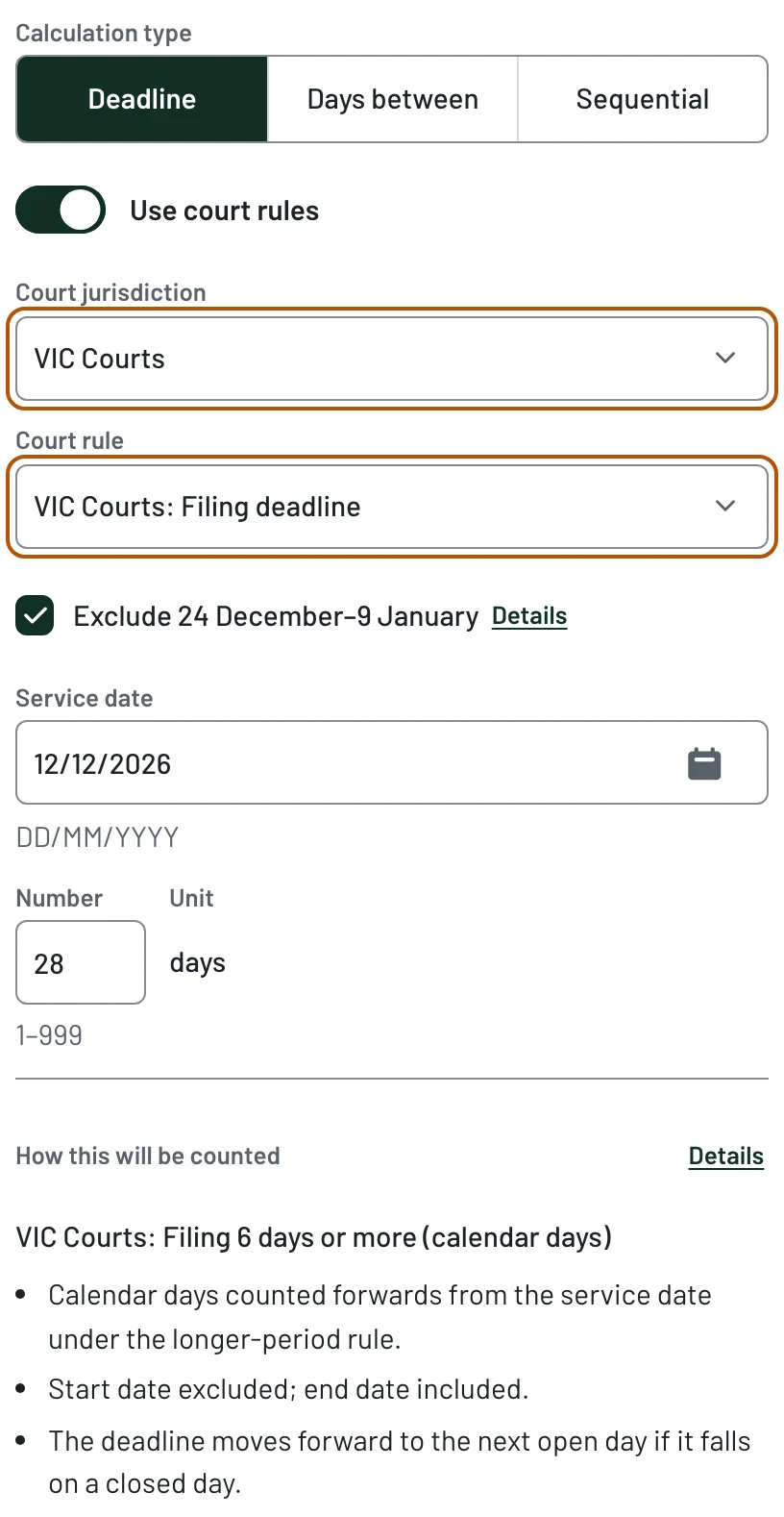
- Choose Deadline, then turn on Use court rules
- Check the correct date to count from
- Review How this will be counted before calculating
Choose Deadline and turn on Use court rules. Select the court whose rules apply. The calculator uses those rules to decide which days count, whether the first and last dates count, and whether a deadline on a closed day moves.
- Court jurisdiction
- Select the court named in the applicable rule. If a Details button appears beside a court field, use it to check what that choice covers.
- Court level or registry
- Where this field appears, choose the court level or registry that applies. For example, WA Courts offers Supreme/District Courts and Magistrates Court under Court level or registry.
- Start date
- Enter the date to count from: the event date when counting backward, or the date that starts the period when counting forward. Check any service or deemed-service rule before entering it.
- Number / Unit
- Enter the number of days stated in the rule or order. The unit is days. Some court rules count short periods differently from longer ones, so changing the number can change which dates count.
- Court rule
- Choose the rule that matches your deadline. A notice rule counts backward from the event, such as a hearing; a filing rule counts forward from the date that starts the period. Direction follows the rule you choose, and How this will be counted states it. After calculating, Calculation details also shows the Court rule used.
- Optional court rules
- Where an option such as Exclude Court Vacation appears, read its explanation before selecting it. Use it only when the applicable rule requires those dates to be left out. In Victoria, Exclude 24 December–9 January starts on. Turn it off if the Court has ordered that this period be counted.
Check how the days will be counted
Below the inputs, How this will be counted shows a short summary of the court rule, counting method, direction and how the start and end dates are treated. After calculating, the Closed-day rule in Calculation details explains what happens if the calculated deadline falls on a day the court is closed. Review this summary after changing the court, level or number of days.
Court rules set the first- and last-date choices for you. Check service dates, extensions and any special order separately before relying on the result.
Related resources
- Victorian court filing example
A 28-day filing period crossing the Victorian vacation
- Australian court deadline rules
Which dates count under different court rules
Count a security-of-payment period
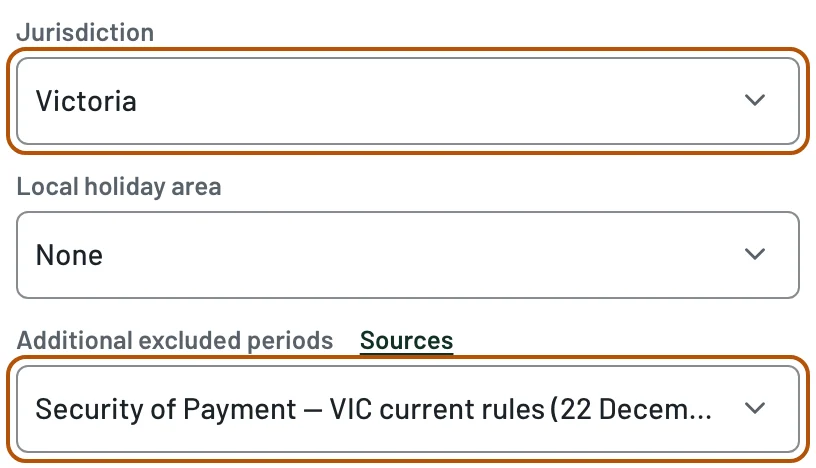
- Choose Working days with Use court rules off
- Enter the period stated in the applicable law or contract
- Choose the exclusion for the state and rules that apply
Security-of-payment laws set time limits for construction payment claims and related steps. They are often called SOPA rules. Check the law or contract for the period and starting date that apply to your step. Choose Deadline, leave Use court rules off, and select Working days under Counting method.
- Jurisdiction
- Choose the state or territory whose rules apply. Select a Local holiday area too if a local holiday is relevant.
- Additional excluded periods
- Choose the entry for the state and rules that apply. Victoria has separate options for Security of Payment — VIC current rules (22 December – 10 January) and Security of Payment — VIC earlier transitional rules (no exclusion). Check which version applies before choosing.
- Start date / Number
- Enter the date the period starts and the number of working days stated in the applicable law or contract. Check Dates to include to match whether the first and last dates count.
- Non-working dates
- After calculating, open the list to check the holidays and dates left out. Use Calculation details to check the selected calendar and security-of-payment entry.
Related resources
- NSW payment schedule example
A ten-business-day payment schedule count across Christmas
- SOPA payment claim deadlines
State definitions, exclusions and the Victorian transition
Set up a conveyancing count
- Check the contract's definition of business days
- Enter the starting date and period stated in the contract
- Leave out 27–31 December only when the contract requires it
Choose Deadline and leave Use court rules off. Read the contract's definition of business days and its wording about when the period starts and ends. Use those details to choose the settings.
- Counting method
- Choose Working days or Calendar days to match the contract's wording.
- Jurisdiction
- For working days, choose the state or territory whose holidays the contract uses. Set Local holiday area if a local holiday applies.
- Additional excluded periods
- Select Conveyancing contract — December (27–31 December) only when the contract's business-day definition leaves out those dates.
- Start date / Number / Dates to include
- Enter the starting date and length of the period. Choose whether the first and last dates count, as stated in the contract.
Check the December dates in your contract
The December exclusion is optional. Check your contract before selecting it; it does not apply to every property transaction.
Related resources
- Conveyancing settlement example
Compare the same contract period in NSW and SA
Link periods with Sequential
- Each period has its own settings
- The result of one period becomes the start date of the next
- Select each tab to check its settings before calculating
Choose Sequential when each period begins where the previous one ends. Enter the first Start date, then use the tabs to set up each period.
- Periods
- Select a tab to view that period. Set its Counting method, Number, Unit and Direction. Use the edit icon on a tab to give the period a useful name.
- Add another period
- Use the plus button to add the next period. Check its settings before adding another.
- Dates to include
- Choose whether the first and last dates count in each period. Follow the rule or contract for that period.
- Jurisdiction, Local holiday area and Additional excluded periods
- For each working-day period, check Jurisdiction, Local holiday area and Additional excluded periods. Each period can use different settings.
- Move left / Move right
- Use the arrow buttons to change the order. The order affects the result, so review each tab before selecting Calculate.
Check the date shared by two periods
The result of one period becomes the next start date. Check whether your rule or agreement counts that date in the first period, the second, both or neither. If a later period starts from a separate event rather than the previous result, calculate it separately.
Related resources
- Australian use cases
Worked examples for court, construction payment and contract deadlines
Check your result
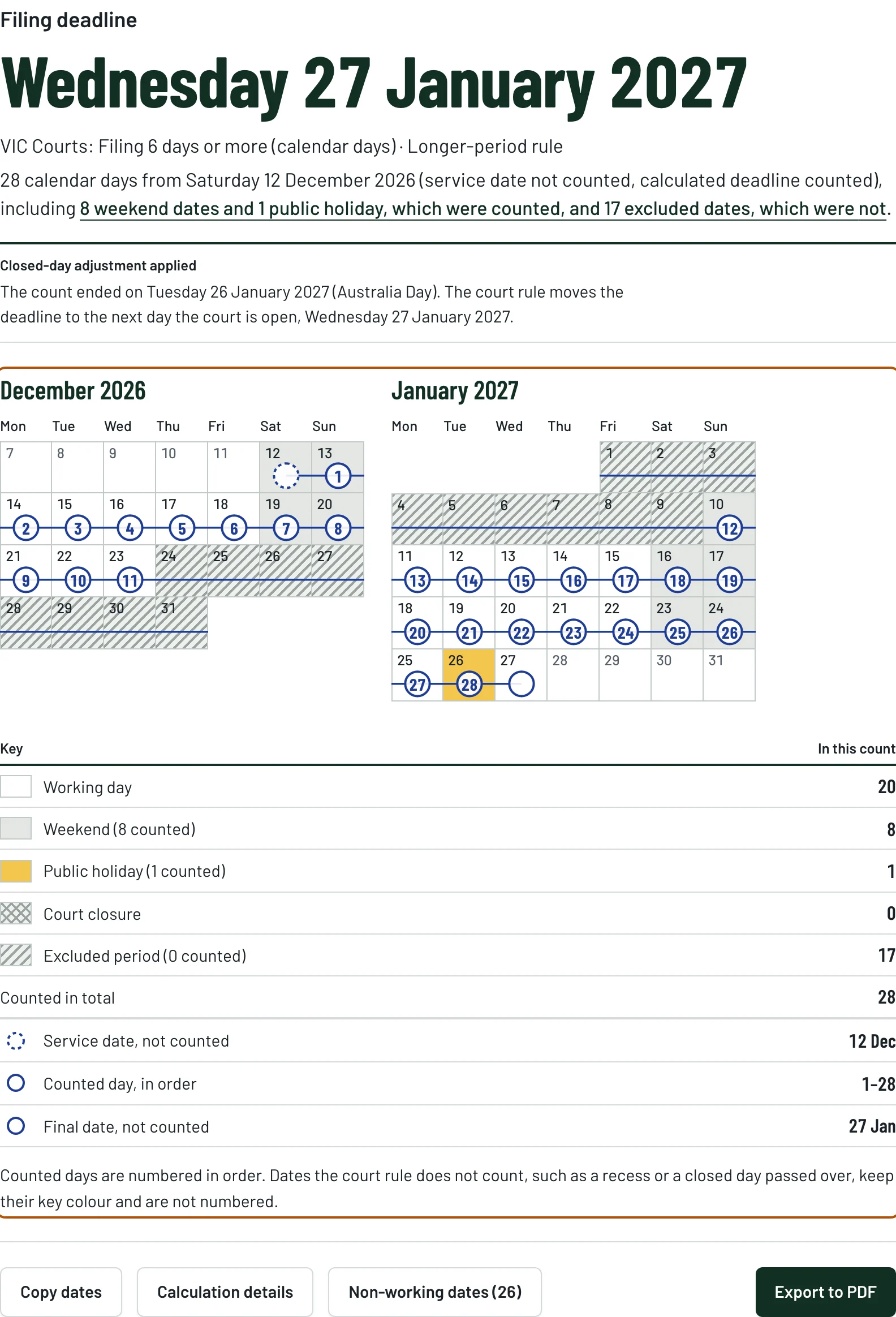
- Check the answer and the settings in Calculation details
- Use the calendar and Non-working dates to review the period
- Read any warnings before saving or sharing the result
Check more than the date or day count at the top. The details show which settings were used, and the calendar helps you see how the count reached the answer.
- Result at the top
- Deadline shows the calculated date. Days between shows the number of days counted. A court result also names the counting rule used below the date.
- Calculation details
- Open this to check the dates, period, direction and counting method. Review the holiday calendar, local area, dates to include and any exclusions or optional court rules used.
- Closed-day adjustment applied
- If this notice appears, read why the court deadline moved from the date first calculated. Check the final date against the applicable closed-day rule.
- Non-working dates
- Open the list of weekends, holidays and selected exclusion dates within the period. These dates can still count if your calculation uses calendar days; the list alone does not mean they were left out. A part-day holiday may also be shown without removing the whole date.
- Calendar view and Key
- Counted days are numbered in order on the calendar. Use the key to check what each colour means and how many dates of each kind fall in the period. Dates that are not counted keep their colour and are not numbered.
- Warnings
- Read any warning about holiday data or the limits of the selected rules. Check any missing information before using the result.
- Export to PDF
- Save a copy after checking the result and its settings. Keep any warnings with it, and recheck the applicable rule or dates if your circumstances change.
Related resources
- Australian calculator examples
Check how a worked example reaches its answer
Troubleshoot an unexpected result
- For a one-day difference, check whether the first and last dates count
- For an unexpected holiday, check the calendar, local area and counting method
- Check missing dates or other information flagged in a warning
- The answer is one day out
- Check Include the start date and either Include the deadline date or Include the end date. For court rules, review Start-date treatment, Result-date treatment and Closed-day rule in Calculation details. Also check whether the count uses working days or calendar days.
- A holiday is missing
- Check Jurisdiction, Local holiday area and the year. Make sure you are counting Working days; calendar days include holidays. If a local date is missing, check the official holiday table before relying on the result.
- A local holiday area is not shown
- Choose the relevant state or territory under Jurisdiction, then look in Local holiday area. Only supported areas are listed. If your area is missing, check its official holidays separately.
- The court method changed
- Some court rules count short periods differently from longer ones. Check Court jurisdiction, any court level and Number, then read How this will be counted to see the rule used for that period.
- The Victorian security-of-payment count skips the wrong dates
- Check whether the current or earlier transitional rules apply, then choose the matching Victorian entry under Additional excluded periods. The applicable law's transition provisions determine which version to use.
- The result differs from the contract or rule
- Compare the starting date, period, dates to include, holiday calendar and selected exclusions with the contract or rule. Check any service date, extension or later event that could change when the period starts or ends.
Check the starting date as well as the count
The calculator counts from the date you enter. Check that this is the correct starting date under your rule or contract, including any service requirements or later event that changes the period.
Related resources
- Australian use cases
Worked examples to compare with your calculation
- Australian articles
Holiday dates and explanations of the rules